A busy contact form mixes everything together: sales leads, support requests, partnership pitches, job applications and spam. Formkove reads each submission before it’s delivered, labels it, and sends it to the right place.
What the AI adds
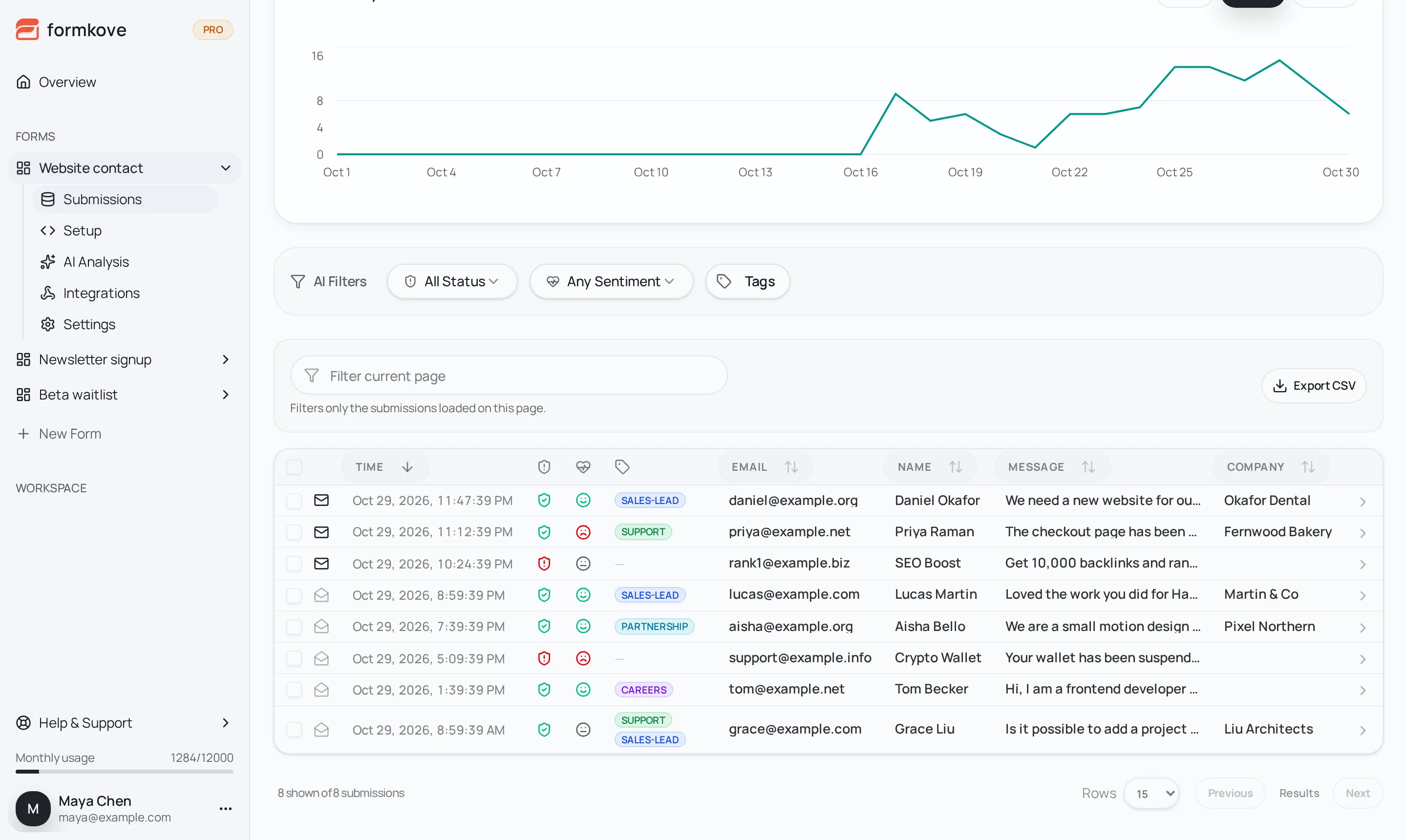
For every submission, Formkove records:
- Spam or not. Spam is held back from email and integrations.
- Sentiment. Positive, neutral or negative.
- Tags. One or more of the tags you define, like
sales-leadorsupport.
All of it shows up in your submissions inbox, and you can filter by any of them.
1. Describe your form and tags
Open your form and go to AI Analysis. Start from a template or write your own:
- Form purpose: one line, like “Contact form for a web design studio”.
- Tags: a short name and a plain-language description for each.
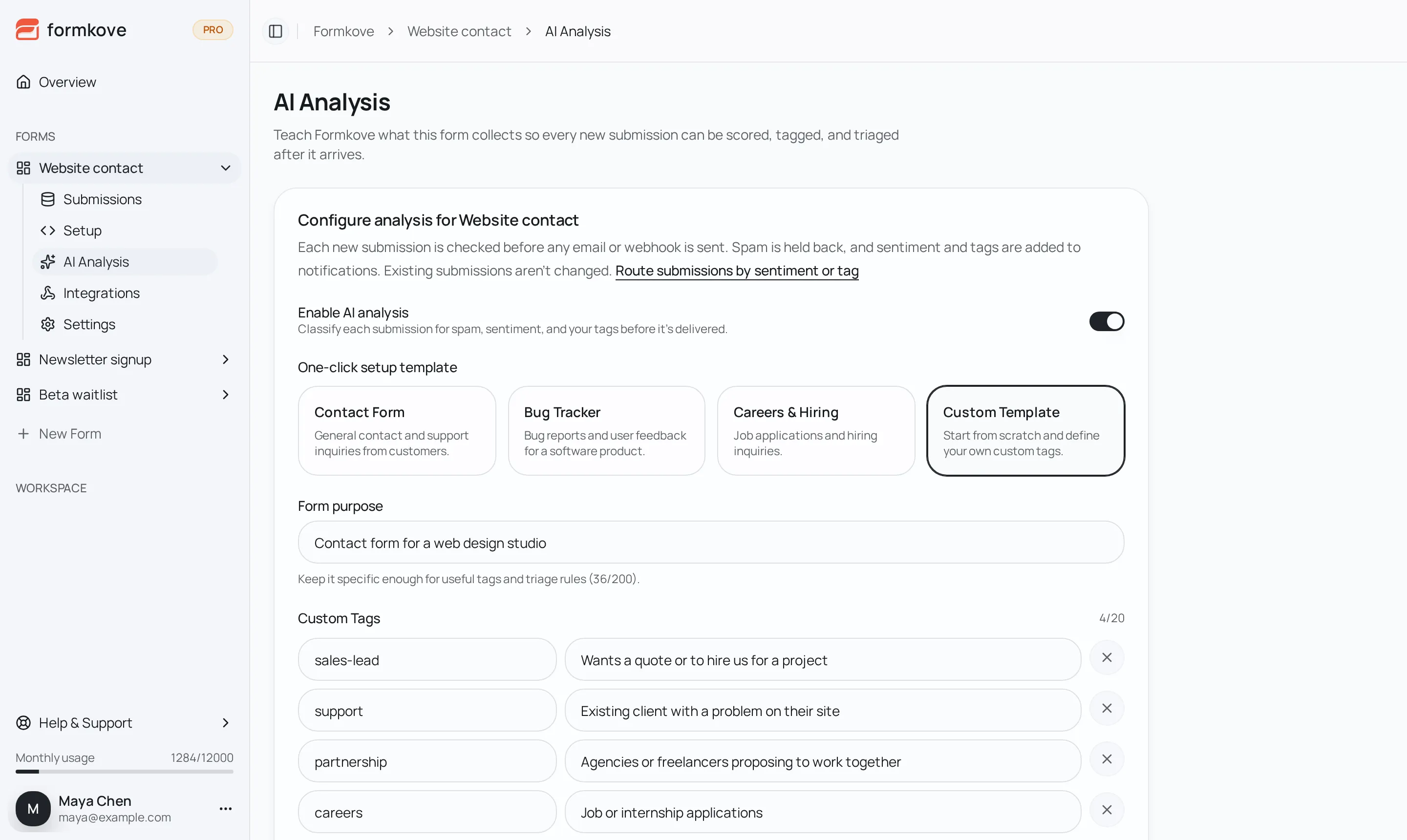
The description is what the AI reads, so write it the way you’d brief a new teammate. “Wants a quote or to hire us for a project” works better than “sales”.
2. Route each integration
Each integration can have its own rules. Open Integrations, pick a connection and choose when it should fire: by tag, by sentiment, or by spam score. For example:
| Integration | Rule |
|---|---|
Slack #sales |
Tag is sales-lead |
Slack #support |
Tag is support |
Discord #escalations |
Sentiment is negative |
| Google Sheets | No rule, so every submission that isn’t spam |
Now a quote request goes to the sales channel, an unhappy customer gets flagged in #escalations, and spam goes nowhere. When a connection has more than one rule, a submission has to match all of them.
3. Check the results
New submissions appear in the inbox with their spam check, sentiment and tags. Use the AI Filters to see only leads, only negative messages, or only what was marked as spam.
The AI only analyzes new submissions. Existing ones aren’t changed.
Tips for better tags
- Keep tags distinct. “Pricing question” and “sales lead” overlap. Merge them or explain the difference in the descriptions.
- Use a few good tags. Four to eight clear tags work better than twenty vague ones.
- Say who it’s from. “Existing client with a problem on their site” helps the AI tell support from sales.
Which plans include it
The AI spam filter is on every plan, including Free. Tags, sentiment and routing are on Pro and Agency. The AI classification docs cover the details.